At a glance
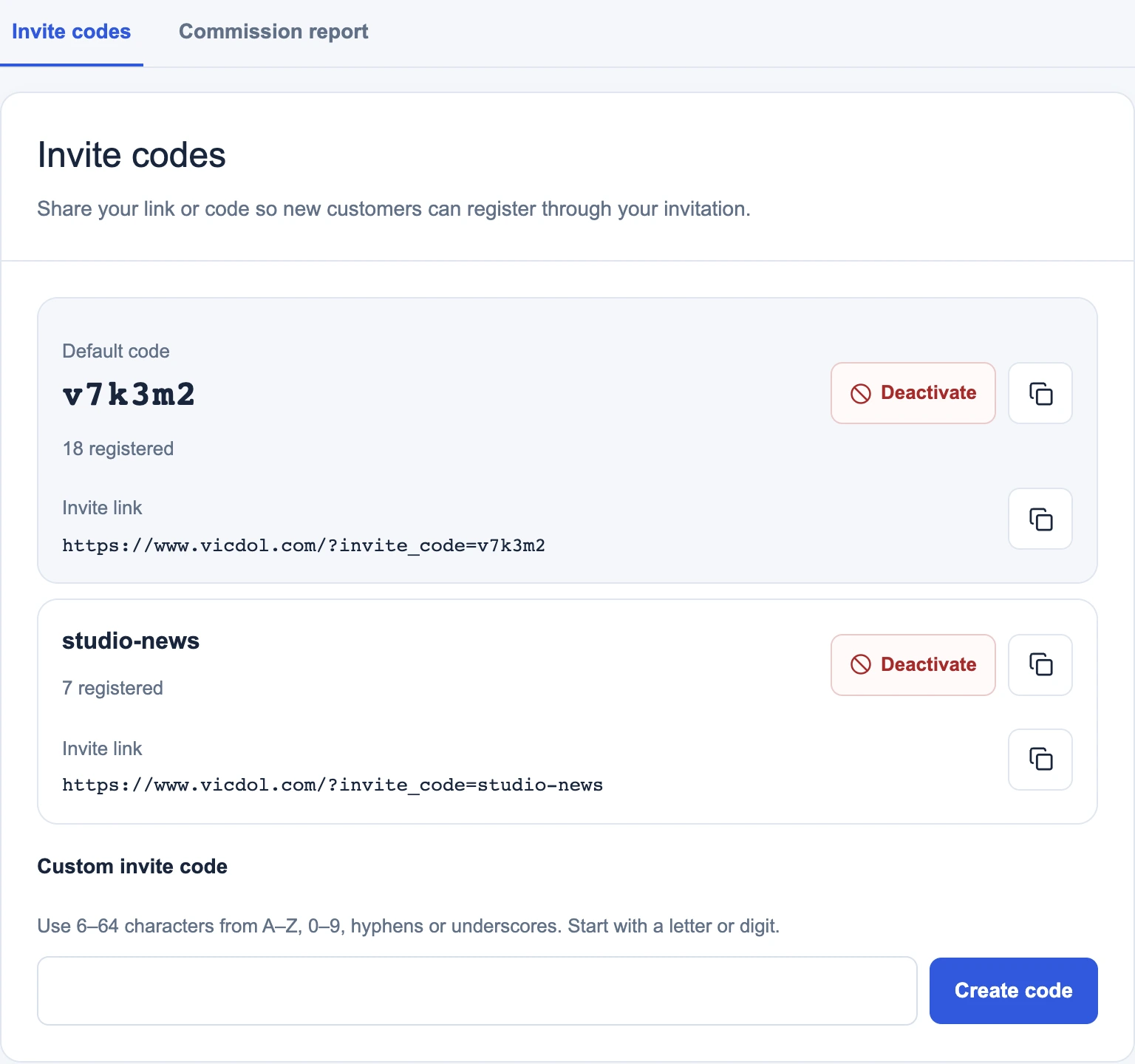
- Copy your default link from Account settings → Referrals → Invite codes.
- Share the invite link with friends who are registering for the first time.
- Use a custom code for each channel if you want to see how many registrations came from each one.
Find your invite link
Open Resources → Referral program and choose Get your invite code. If you are already signed in, you can also go to Me → Account settings → Referrals → Invite codes. Your default code has six characters. Use the copy icon beside the full invite link to share it, or the icon beside the code to send the code on its own.
The invitation is recorded when a new user finishes verifying their email with an active code. A friend who already has a Vicdol account can sign in with the same link, and their account will keep its existing invitation status.
Share the service you have in mind
Send the invite link and the service page together. For example, if your friend is considering a service for a YouTube video, share the YouTube views page so they can check the link requirements and available packages. The invite link opens the Vicdol homepage.
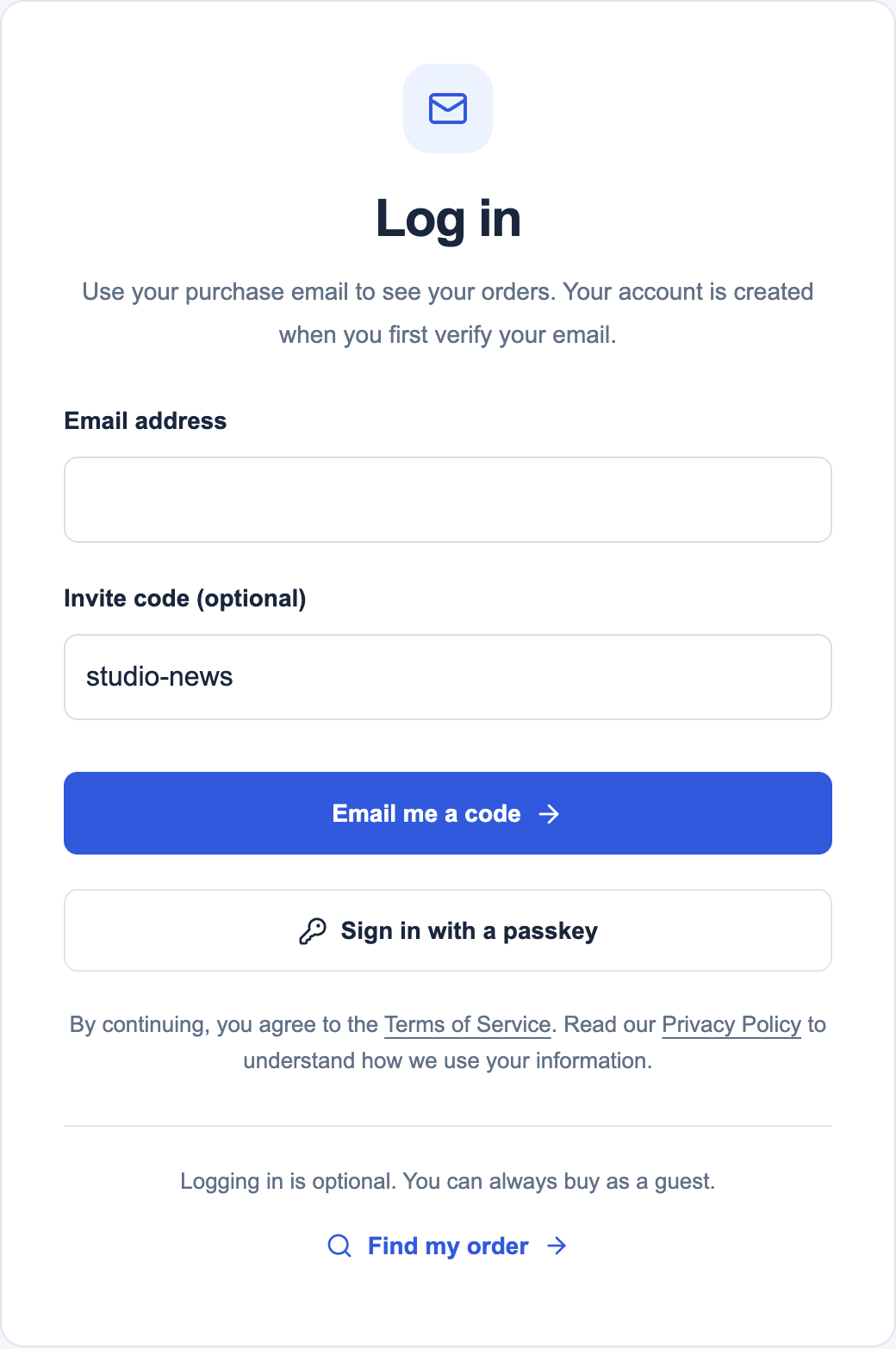
When your friend signs up after browsing in the same tab, their invite code is already filled in. After verifying their email, they can return to the service page and check out while signed in.
Track registrations by code
Enter a 6–64-character code under Custom invite code and select Create code. Copy that code’s link for the community or channel you want to track. Check the number next to each code to see how many people finished registering through it.
If you stop using a custom code, you can deactivate it. People can still register after opening the old link. Registrations completed with that code while it was active keep their original invitation.
Questions, answered
Where can my friend enter an invite code?
On the Vicdol account sign-in and registration page, enter it in the optional Invite code field before requesting an email verification code.
Can I use the link for more than one friend?
Yes. You can share an active link with multiple new users. Each completed registration contributes to the count for that code.